
Recognisable warbands
Give each subgroup a quantity, role, leader and task. A frontline unit, reserve or ranged-support group can pose a different problem without requiring an individual turn for every member.
A mass threat with readable choices
Give the host recognisable groups, staged waves and an objective worth defending. Prepare the pressure, review the choices and decide how the battle unfolds at your table.
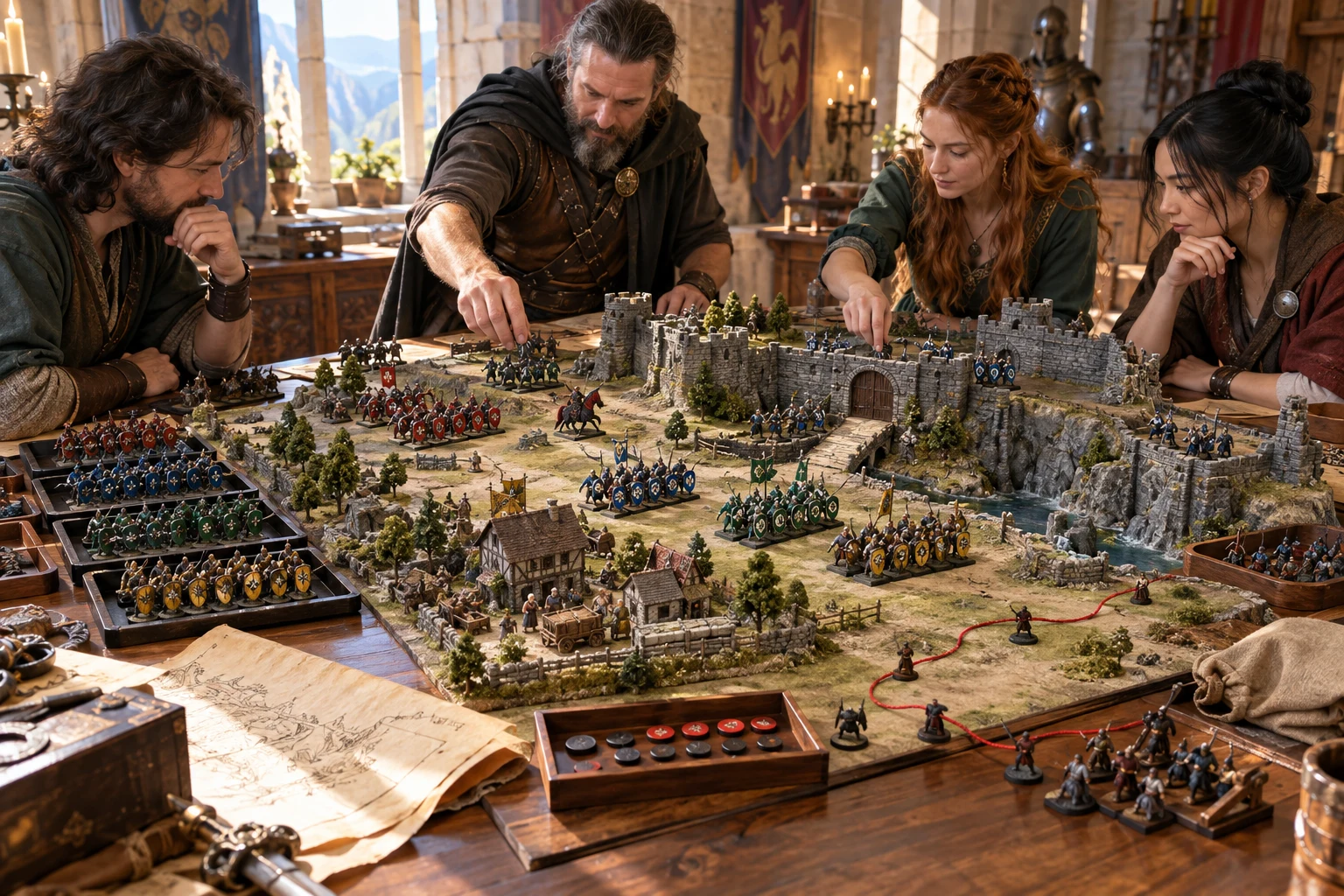
Give the force a shape
Prepare one tactical many-enemy encounter as groups, objectives and visible pressure. Leave live combat decisions with the DM.
Give each subgroup a quantity, role, leader and task. A frontline unit, reserve or ranged-support group can pose a different problem without requiring an individual turn for every member.
Review wave triggers and entry notes before play. Decide what the party can see approaching and when a prepared wave belongs in the scene. The generator does not deploy it automatically.
Protect an evacuation, stop a breakthrough, break command, survive the waves or seize a pressure point. An explicit objective gives the battle an ending beyond defeating every enemy.
Use morale states, subgroup losses and retreat guidance as DM prompts. Choose when a leader’s defeat or lost position changes the situation; these notes do not enforce a ruling.

An objective players can understand
The illustration shows an evacuation under pressure. Choose Protect evacuation to prepare that kind of objective.
Fit the groups, sectors and wave entries to your own battlefield. The tool provides notes, not this pictured location.
From composition to a playable brief
Quick and Deep use the same preparation builder; the controls shape descriptive output rather than calculate a balanced combat encounter.
Select an undead host, goblin warband, raiders, legion, monstrous pack, cult uprising, beast stampede or construct cohort. Choose a force scale and a main objective.
In Deep, review command style, organisation, training, cohesion, support, formation, group and wave counts, morale, reserves, terrain and retreat. Quick retains previously selected Deep values.
Read the subgroup quantities, waves, sectors, command, objectives and retreat guidance together. Resolve inconsistencies after locks or edits and decide which actual stat blocks belong in your game.
Save a reviewed account revision, share a checked player brief or prepare the structured encounter in Combat PRO with its own access. Preparation stays separate from live execution.
What the tool provides
The current Windows tool combines structured encounter preparation, deliberate revision and account-backed records.
Prepare a host as recognisable warbands with quantities, roles, leaders, formation tasks, morale breakpoints and retreat routes. Review the structure rather than managing hundreds of individual turns.
Read each wave’s assigned groups, entry, trigger and intent. Reinforcement guidance describes a finite reserve. Waves remain preparation until the DM decides how to use them.
Use named sectors, terrain notes, vulnerable crossings and fallback routes to make the battle readable. These are descriptive locations; no battlefield map is generated.
Review a field commander, descriptive formation, morale states and group-condition guidance. The DM decides when to apply them; the tool does not resolve attacks, losses or morale tests.
Choose composition, force scale and objective in Quick. Deep exposes organisation, training, support, group and wave counts, formation, morale, reserves, terrain and retreat settings.
Keep matching subgroup or wave records by locking their identifiers. Reroll an unlocked item while reviewing the other unlocked sections and derived guidance that can also change.
Edit the structure as JSON, review the player brief, copy the fuller DM encounter or download the whole result. Check edited quantities, references and private notes before sharing or transfer.
Save manually through your signed-in DCC session, search by name, duplicate and reopen earlier versions. With separate Combat PRO access, send a reviewed preparation into an available encounter slot.
Choose the kind of host
The presets change selected controls while retaining the rest of your setup. Review their complete settings rather than assuming a preset replaces every value.
Undead presets emphasise a cohesive mob with no planned retreat. Monstrous presets change training and elite settings. Adapt those descriptions to the actual creatures and rules you choose.
Use loose warbands, assault columns or a shield wall as a descriptive starting point. The legion preset raises training and cohesion; raiders add mounted-support guidance.
The four labelled bands produce representative totals of 32, 80, 180 and 480. Those totals are divided among subgroups. Changing scale with retained locks can leave older quantities in place, so review the final sum.
Training, cohesion, ranged, mounted and magical support describe the preparation. They do not calculate attacks or spell effects. Apart from the low elite setting, one subgroup is marked elite; higher labels do not add proportional elite units.
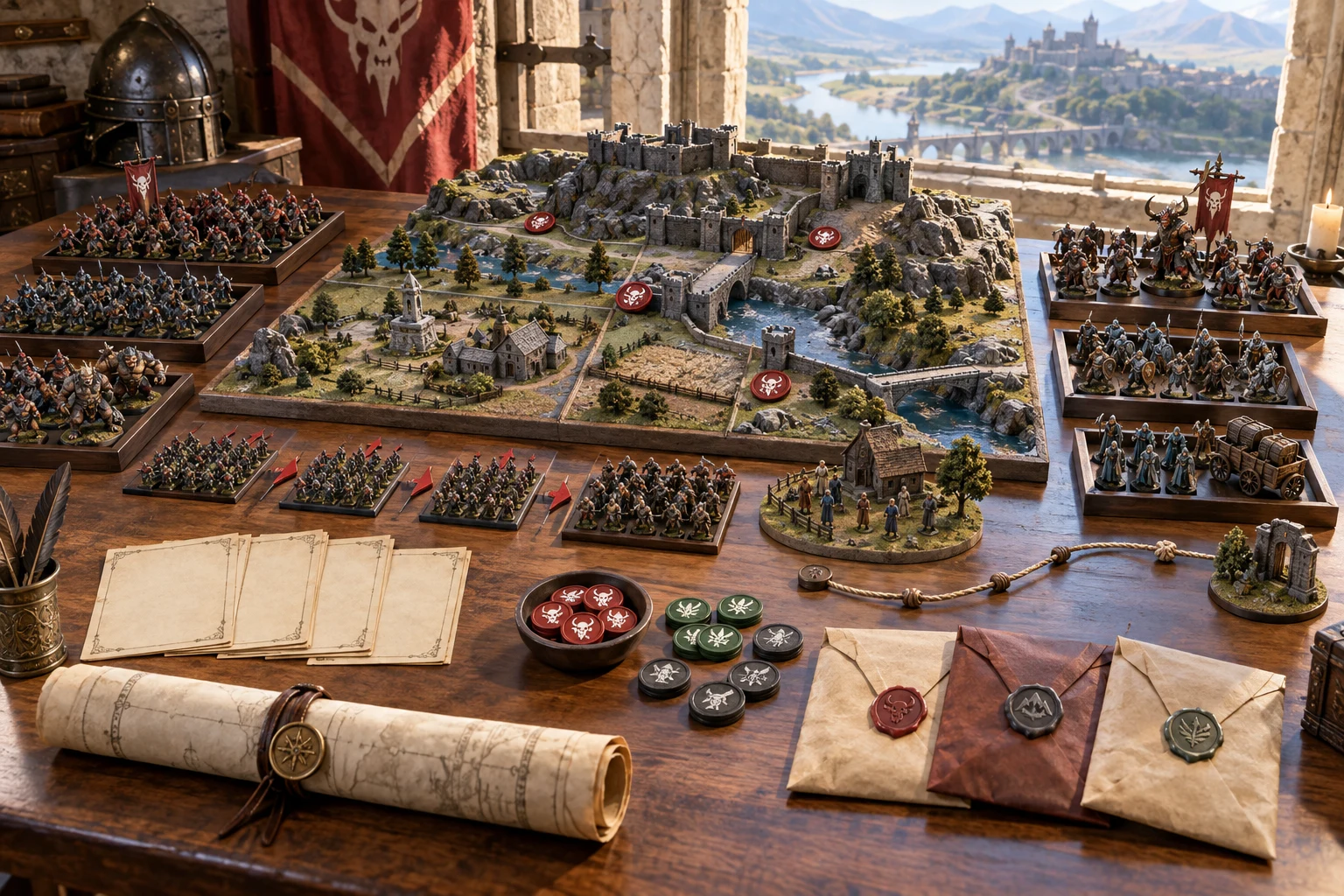
A preparation table, in readable parts
The illustration represents grouped forces and planned pressure points. Read the actual result as structured notes.
No miniature board, battlefield image or physical kit is generated or included. Adapt the preparation to your own table.
Keep useful records deliberately
Review the complete result after a reroll. A button for one item does not freeze every other part of the encounter.
A subgroup reroll preserves the other matching subgroup records. Only manually locked waves are preserved, so unlocked waves can change. Command, sectors and other derived guidance can also regenerate.
A wave reroll preserves the other matching wave records. Only manually locked subgroups are preserved, so unlocked subgroups can change. Recheck each wave’s referenced groups and entry notes.
The tool uses the seed with a counter that advances on each run. Repeating just a seed does not guarantee the same result. Keep a saved result when the exact preparation matters.
Generate another retains the current encounter’s identity and name. Fresh encounter clears the result, locks, controls and counter. Use a duplicated account variant when you need a separate prepared identity.
Review before keeping or sharing
Use the player and DM views deliberately and keep copies appropriate to their audience.
Save updates the encounter’s account record and keeps up to ten earlier result snapshots. The library provides name search and duplicate controls. It does not autosave each change or offer a delete control on this product surface.
Open restores the saved result and its subgroup and wave locks. It does not restore form controls, seed or counter. Opening a prior version restores only the result. Review the setup and current locks before generating again.
The check requires groups, waves, sectors, positive quantities and a primary objective. It is not a full integrity or balance audit. An edit does not automatically reconcile totals, wave references or the separately editable player brief.
The player brief includes objective conditions plus sector risk and fallback notes. Remove information you prefer to withhold. JSON downloads the whole result; select the player view before printing and inspect print preview and page selection.
Choose access for your toolkit
Horde Encounter Generator is a paid standalone tool. Start with a free VISINVOKE account, then review the required selection and subscription.
Select Horde Encounter Generator individually. Creating a free account does not by itself include paid generator access.
Choose a pack of five eligible standalone generators. Check your chosen tools and subscription terms in your account. Selection capacity does not include every VISINVOKE product.
Choose more capacity when it suits your toolkit. Check the actual selected generators and reselection terms before changing your subscription.
The generator’s planning workflow is standalone. Its optional handoff requires Combat PRO access and an available prepared encounter slot. Battlemaps and image products have their own access models.

Use warbands, waves and sectors to give the players recognisable choices within a large encounter.
Prepare an evacuation, defensive line or command problem with explicit success and ending guidance.
Start Here and How Do I guidance cover creation, group and wave revision, account saving, exports and preparation handoff.
Transfer one preparation-only monster shell per subgroup alongside inactive groups, quantities, sectors, objectives and pending waves. Review stat blocks and references in Combat PRO; saved-slot limits apply.
The handoff leaves groups inactive and waves stay pending. It does not activate combat or import live HP, initiative, turns, conditions, maps or log entries. Sending the same encounter identity again returns a duplicate and does not update the earlier import. The generator and Combat PRO do not continually synchronise.
Build your tabletop toolkit
Each card opens that product’s own website. Review purpose and access separately; these links do not promise included access or automatic synchronisation.

Discover and open your supported Windows products through one connected VISINVOKE account.

Explore environment packs for tactical locations and the places your encounters unfold.
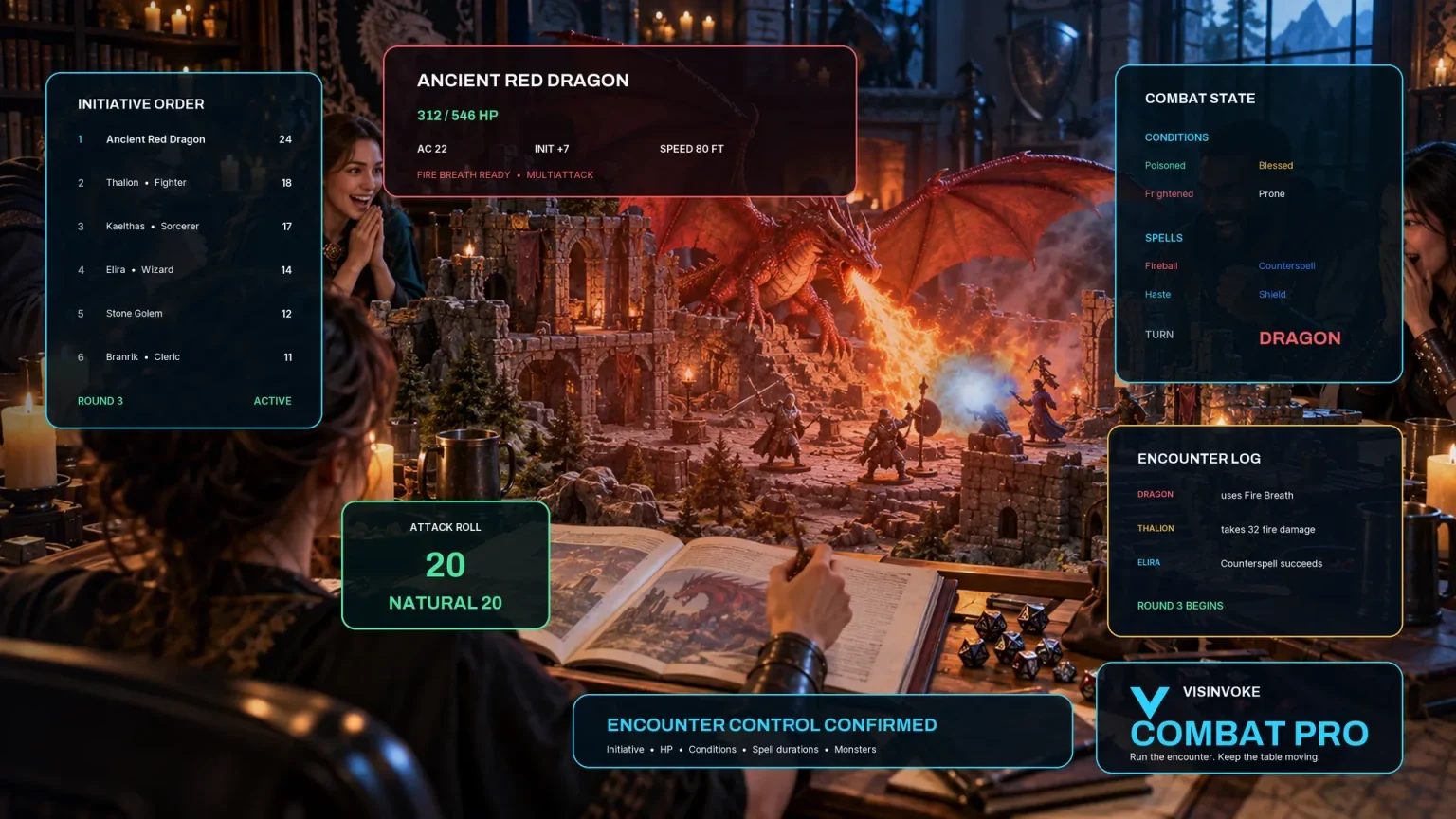
Review prepared opposition, tune creature statistics and run tabletop encounters with its own access.
Create focused character, monster, item and location images to complement your tabletop preparation.

Create guided commercial visuals for websites, brochures and wider creative projects.

Explore a separate futuristic RPG experience with its own world, characters and progression.
Product artwork illustrates battle preparation, not application screens or actual generated image output.
Quick answers
Understand how revision, audience review and preparation handoff work before opening the tool.
It creates a structured many-enemy encounter: subgroups, quantities, a commander, prepared waves, formation, sectors, objectives, morale, attrition and retreat guidance. It uses authored choices and descriptive templates, not party-balanced stat blocks or a mass-combat simulation. The DM chooses the actual opponents, rules and consequences for the group.
Quick shows composition, scale, objective and seed. Deep reveals the advanced controls. Quick retains previously selected Deep values. Both modes use the same builder. Undead, Goblin, Raiders, Legion and Monstrous presets change selected settings and open Deep, while the remaining values stay in place. Review the complete setup before generating.
A subgroup reroll preserves the other matching subgroups, but unlocked waves can change. A wave reroll preserves the other matching waves, but unlocked subgroups can change. Commander, sectors and other derived guidance can also regenerate. Locks only preserve identifiers present in the new structure. Recheck totals and references after changing scale, counts or edited records.
Generation uses the seed with a counter that advances on each run. Seed alone does not guarantee replay. Generate another retains the current encounter’s identity and name until Fresh encounter resets the setup. Reopening an account record restores its result and locks, but does not restore form controls, seed or counter. An earlier-version button restores that result only.
Save manually to the account library under your existing signed-in DCC session. A revision retains up to ten earlier result snapshots, with name search and duplicate controls. The structural check is not a full integrity or balance audit. The player brief includes objective conditions and sector risk and fallback notes, so review it before sharing. JSON download always downloads the whole result. Select the player view before printing and inspect print preview.
The handoff creates prepared groups, quantities, one preparation-only monster shell per subgroup, sectors, objectives, a commander, pending waves and DM prompts. Groups remain inactive and waves stay pending. It does not supply finished stat blocks, activate combat or import live HP, initiative, turns, conditions, maps or log entries. Combat PRO access and saved-slot limits apply. Sending the same encounter identity again returns the existing import and does not update the earlier import. Review and run the encounter in Combat PRO; the two products do not continually synchronise.
Continue in VISINVOKE
Create a free VISINVOKE account and choose the required generator access.
Get Desktop Command Centre from your account installer page. Sign in on Windows, then open Horde Encounter Generator.